

SD cards are widely used in cameras, drones, mobile phones, and other devices to store large amounts of photos and videos. However, photo loss is very common in actual use, due to accidental deletion, formatting, file system errors, or even system prompts requiring formatting.
Many people believe that “permanent deletion” means the data is unrecoverable, but in reality, in most cases, as long as the data has not been overwritten, photos still have a high chance of recovery.
This article will introduce how to recover permanently deleted photos from an SD card, including the fastest software recovery method and some free alternatives.
What to Do Immediately After Photos are Deleted
Your first reaction after discovering photos have been deleted is crucial and directly impacts the success rate of recovery.
- Do not continue taking photos or recording videos.
- Do not write any new data to the SD card.
- Do not reformat the SD card.
- Do not run any unreliable repair tools.
Using SD Card Data Recovery Software (Fast and Simple)
Using professional SD card data recovery software is the simplest and most successful method.
Recommended Tool: iToolab RecoverGo Windows Data Recovery
iToolab RecoverGo Windows Data Recovery is a professional Windows data recovery tool specifically designed to recover files from accidentally deleted, formatted, or damaged devices, including photos, videos, and documents on SD cards.
Key Features
- Supports recovery of accidentally deleted photos
- Supports recovery from formatted SD cards
- Supports deep scan mode
- Supports multiple image formats (JPG, PNG, RAW, etc.)
- Supports recovery from camera and drone memory cards
- Preview function allows you to view files before recovery
- Simple operation, no technical expertise required
Detailed Steps
Step 1: Install Software and Connect SD Card
Install the RecoverGo software on your computer, then connect the SD card to your computer using a card reader.
Ensure your system can recognize the device.
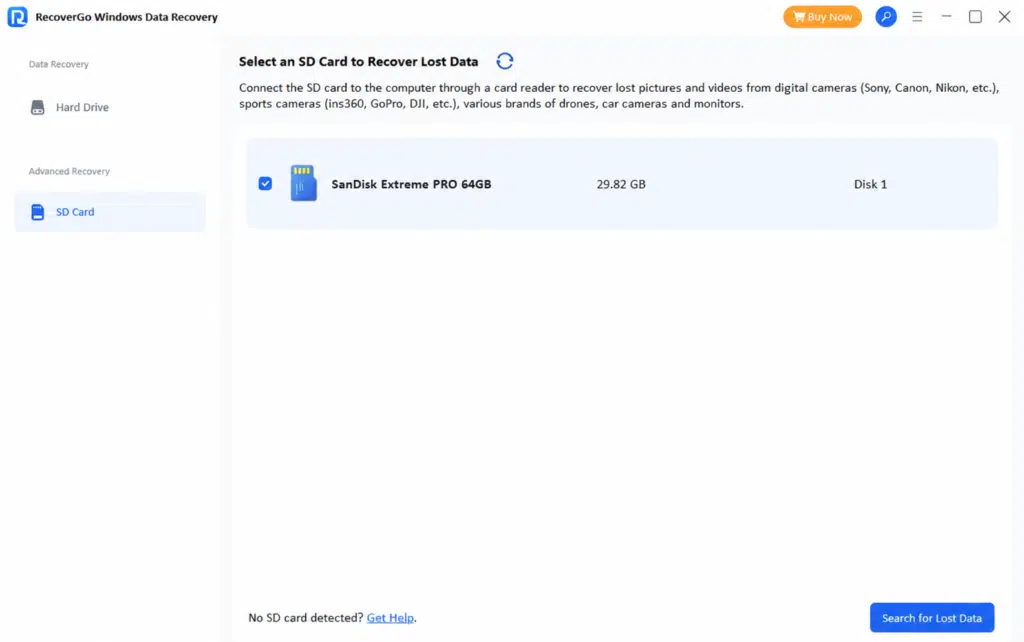
Step 2: Select Scan Mode
Select the SD card device, then click the “Scan” button to start scanning.
Deep scan mode is recommended.
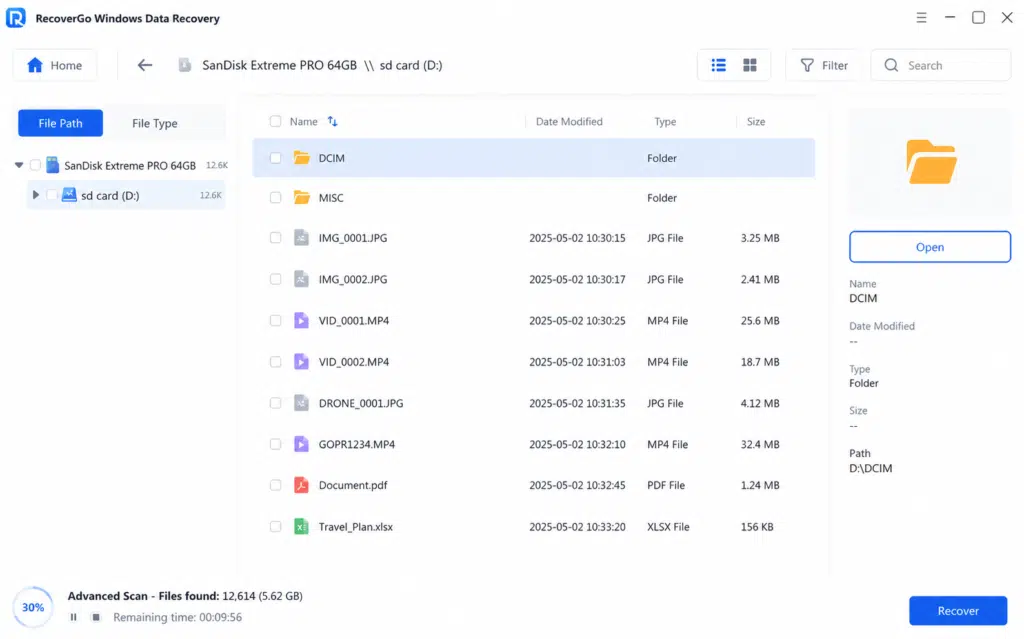
Step 3: Scan and Preview Photos
The software will automatically scan for deleted files.
Filter by image type (JPG/PNG/RAW).
You can use the preview function to view the photo content.
Step 4: Recover Files
Select the photos you want to recover, then click “Recover”.
Save to your computer’s hard drive.
Other Recovery Methods
If you don’t want to use Recovery software first, you can try the following free methods, but the success rate is relatively low.
Method 1: Recover from Recycle Bin
Applicable to: Files deleted after connecting an SD card to a computer
Steps:
- Open the Recycle Bin
- Locate the deleted photos
- Right-click and select “Restore”
Method 2: Restore using Windows File History or Backup
If you have enabled backup, you can try to recover photo from SD card by
Steps:
- Open “File History”
- Find the previous version of the photo
- Click Restore
Method 3: Repair SD Card using CMD / CHKDSK
Suitable for:
- Damaged SD card
- File system error
- Unable to be read normally
Common commands:
chkdsk X: /f
or:
attrib -h -r -s /s /d X:\*.*
How to Improve Recovery Success Rate
To maximize the recovery success rate, please note the following:
- Immediately stop using the SD card.
- Do not overwrite new data.
- Use professional recovery software to scan first.
- Use a card reader instead of directly manipulating the device.
- Save recovered files to your computer or another disk.
- Use Deep Scan mode whenever possible.
Conclusion
In conclusion, “permanently deleting” photos on an SD card does not mean they are completely gone; in most cases, they can still be recovered using professional tools.
Of all the methods, using iToolab RecoverGo Windows Data Recovery is the fastest, simplest, and most successful solution, while built-in system tools and backup methods serve as supplementary means.